

You can Copy or Move a library item by selecting the item from the list and pressing the Copy or Move buttons on the appropriate Library Manager page.
Copying and moving operate in the same way except that using Move causes the original items to be deleted whereas Copy just makes a copy of the item.
Copying or Moving Library Items
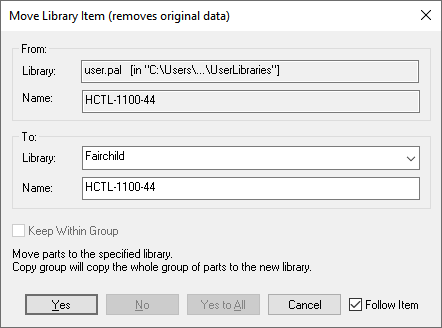
From
The From portion of the dialog is for reference only and is greyed out. It shows the original library and item name which you are copying or moving.
To
The To entry defaults to the same values as From, but you can choose a different library or type a new item name.
You can copy a library item to the same library, or a different library. If you copy to the same library you must, of course supply a new name.
Keep Within Groups
There is an additional complication for Parts; because Parts are stored in groups, a group of Parts share the same definition. When Copying a Part within the same library, you can use the Keep Within Group check box to create a new Part within the existing group, or copy to a new group. When copying a Part from one library to another, Keep Within Group determines if a single Part is copied, or the entire group.
Follow Item
With the Follow Item check box selected, during Copy or Move, for the item selected, the option will position you to its new location with the item selected.
Overwrite Controls
Controls for overwriting existing parts are presented depending on whether the selection is single or multiple. Yes, No and Yes to All, enable the overwrite. The Cancel button enables you to cancel the option and not make changes.
Related Topics
Part Libraries | SCM Symbol Libraries | PCB Footprint Libraries | SCM Documentation Symbol Libraries | PCB Documentation Symbol Libraries