

Use this dialog to set the type of Spice format used to generated a Spice netlist. Each Spice netlist has its own ‘style’, some have extensions and additional commands that are supported. Setting a particular Spice type in the dialog also enables or disables different features within the simulator menus and dialogs.
Shortcuts
Default Keys: None
Default Menu: Simulation
Command: Set Netlist Spice Type
Using this dialog
From The Simulation menu, the Set Netlist Type option displays the following dialog:
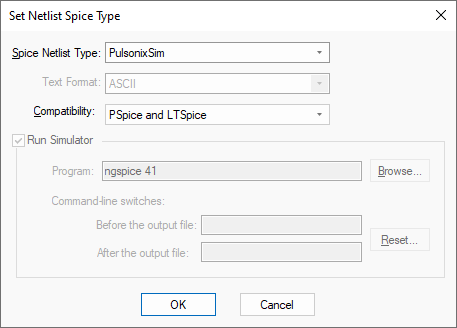
Spice Netlist Type
Choose the Spice Netlist Type for the simulation file. The simulator commands in the netlist file will be formatted to suit the chosen simulator.
If you are not using the integrated Pulsonix Spice option, other netlists in different Spice formats can be exported:
- PulsonixSim - this netlist is formatted for use with the PulsonixSim Spice simulator
- LTSpice - set and run the LTSpice simulator
- Basic Spice - this is a generic Spice netlist suitable for most Spice simulators
- PSpice - this netlist is formatted for use with the PSpice program
- Pulsonix Spice - this is formatted for use with the legacy Pulsonix Spice simulator.
- SIMetrix - if you have purchased the SIMetrix Spice product independently, you can use this option to write a netlist in SIMetrix format. This is formatted for use with the SIMetrix and SIMPLIS Spice simulators.
Text Format
In the Unicode version, you can choose how to encode the Spice Netlist, as some simulators may not be able to support Unicode. This is only really an issue if you choose to use international characters in your Net and Component names.
You can select:
- ASCII any international characters are output as a hexadecimal code point (of the form U+FFFF)
- ASCII/UTF8 normally ASCII, but encoded in UTF8 if necessary
- Unicode for full Unicode output (for example LTSpice is known to support Unicode)
- UTF8 always output UTF8 with leading marker character
Compatibility
Options on the Compatibility list enable the netlist to be formatted to suit different simulators. Choose from PSpice and LTSpice, PSpice, LTSpice or None. The default for PulsonixSim is PSpice and LTSpice.
This option allows PSpice or LTSpice compatible device libraries to be read. These are often supplied pre-formatted by the device manufacturer.
Run Simulator
If available you can use Run Simulator to specify whether you can directly run a simulator as well as producing the Spice netlist. Use the Browse button to locate the program to be run on your computer. Where possible we have added filters to this dialog to suggest a possible simulator program name.
Add any command line switches that are needed to run up the simulator, either before or after the output filename. Initially these will be set to default values for each simulator type. If you change them you can use the Reset button to revert back to the default values.
Accepting Changes
Press OK to accept the change. If Run Simulator is checked you will be able to use the Simulate Design option to pass your Spice netlist directly to your simulator. If not, when this is run, a netlist will be generated that can be imported into your simulator.
Working with the PulsonixSim Spice simulator
By setting the Set Netlist Type to PulsonixSim, this enables the PulsonixSim Spice simulator and functionality within the menus to drive it. Use the PulsonixSim Spice library and stimuli, sources etc. and create Pulsonix Schematics that are loaded directly into Spice where it is automatically loaded and run. Graphs can be produced as full windows or as smaller in-design graphs of local nets simulated.
Working with the LTSpice simulator
You can work closely with the LTSpice simulator without the need to use its Schematic editor. The Pulsonix LTSpice netlist can be used to directly drive the LTSpice engine to simulate your design. Use the Pulsonix LTSpice library and stimuli, sources etc. and create Pulsonix Schematics that can be loaded directly into LTSpice where it is automatically loaded and run.
Refer to the LTSpice help page for more detailed information.
Working with the legacy Pulsonix Spice simulator
If you are working with the previous Pulsonix Spice2 simulator, then details about the specific simulator dialogs are can be found in the separate Spice2 Help help file.
Related Topics
PulsonixSim | Simulation Analysis Modes | Using LTSpice with Pulsonix | Old Spice2 Help