

This option provides easy access to all Grid options via a single shortcut menu.
Shortcuts
Default Keys: Shift+G
Default Menu: None
Command: Change Grid
Locating this option
Available from: command > Change Grid
The Change Grid Menu
To access this menu, either right click whilst editing an item, or press the assigned shortcut key, by default Shift+G, and select the grid you wish to use. Named grids are placed in alphabetical order on the menu.
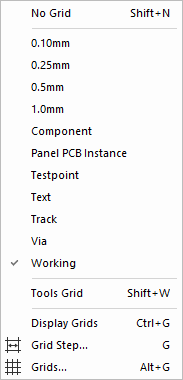
Shortcut Commands for Change Grid
You can also use the Next Grid and Previous Grid commands to change the current grid to the next or previous grid in order as shown in the Change Grid dialog. These commands are not on the context menus by default as they are designed to be assigned to shortcut keys.
Items Shown On The Context Menu
No Grid
With No Grid selected, the cursor position is gridless meaning the items move ‘freely’. Care should be taken using this option.
Named Grids
All user defined named grids appear if you have these defined in the Grids Setup dialog. These allow you to choose which grid to move the dynamic items on.
Display Grids
Use this to toggle all visible grids on or off.
Grid Step
Use Grid Step to quickly change the step size of any grid.
Grids
Use this to enter the main Grids dialog. From here you can customise your own grids or use the advanced grid features, such as referencing other origins or using polar grids.