

The License Manager is a small application which is used to view and update software licenses installed for the protection of Pulsonix software. It is installed by Setup along with your main Pulsonix software.
How does Licensing work?
Some Pulsonix applications are protected by a security scheme which relies on the presence of a License File and a Security Device. If either or both of these are missing or incorrect, the protected application will not run, or may only run in demonstration mode or be limited in some other capacity.
Both the Security Device and the License File are initially installed or prepared by the application Setup program, after which the License Manager can be used to view existing Licenses, to add Licenses, to change License Files, and to examine the status of the Security Device.
As well as this kind of licensing using a License File and Security Device (known as “Node Locked” licensing), Pulsonix can also be protected by a flexible licensing scheme using Network Licensing (also known as “Floating Licenses”).
Using the Dialog
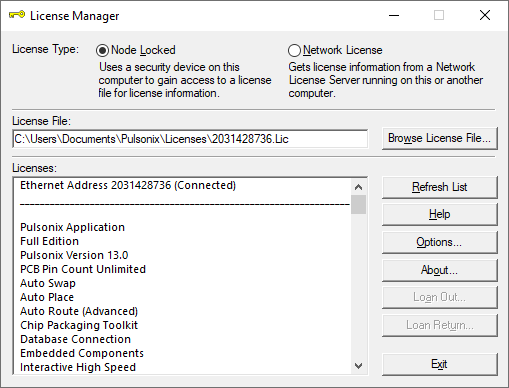
License Type

The two radio buttons allow you to choose between a Node Locked license and a floating Network License.
Selecting the Network License button displays the port selection page from where you can choose the port name and server for connection.
License File

The full path name of the current License File is displayed. To change this setting, press “Browse” and use the standard file browser to locate the License File you wish to use.
You may need to do this for example if you are moving your License file to a departmental server where it can be backed up regularly.
Note: If you select a License File that does not contain any License Codes that are valid with your current Security Device, the list of Licenses displayed on the dialog will be cleared to indicate that nothing is licensed.
Browse License File
When using a Node Locked license, the Browse button enables you to search for and select your license file.
Licenses
Once a valid license file has been selected, the Licenses list will refresh and display the contents of the license.
Other Dialog Buttons
Refresh List
This button is used to refresh the Licenses list.
Help
Selecting this displays these help pages.
Options
This button opens the Options dialog from where you can select various controls for determining how licenses are selected. You can also access the Security Device dialog from where the device type can be selected if required.
NB, security devices are automatically detected in the license file, but this enables a type to be manually selected if required.
About
This button displays the About dialog. This is an important dialog as it displays information about your system and the license types available to you.
Loan Out
This button connects you to the Loan Licenses dialog. It is only available if you are using a floating license and have the LOAN option enabled. The LOAN license is a cost option.
Loan Return
Once a license has been loaned out (using the Loan Out option), this button enables the license to be booked back into the loan pool on the server.
Exit
Use the Exit button to close this dialog.