

The Scripting Dashboard dialog can be used to control how Pulsonix hosts the scripting API, as well as to generate Python client code.
This dialog is not related to Legacy Scripting.
Shortcuts
Default Keys: None
Default Menu: Tools
Command: Scripting Dashboard
Locating this option
Available from: Tools menu > Scripting Dashboard option
How to use the Scripting Dashboard
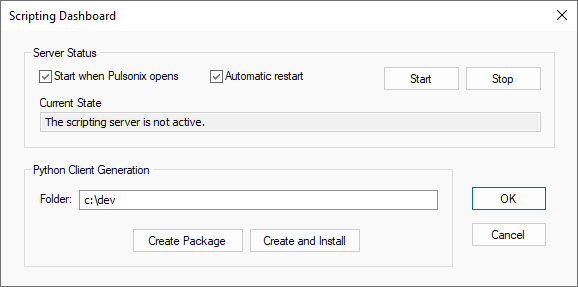
Server Status
The Start when Pulsonix opens option begins hosting a server as soon as Pulsonix is launched.
The Automatic restart option restarts the server as soon as a client disconnects.
The Current field will display the current status of the scripting server. This field updates automatically.
Manual Python client installation
Create Package can be used to save a Python package folder to the specified folder. These files can be
used for a custom installation of the pulsonix package, which can for example use a virtual environment.
Automatic Python client installation
Create and Install can be used to create a package in the specified folder and then automatically install
the Pulsonix package for the global Python installation. This option requires that you have a
suitable Python version installed with the pip module.
The automatic installation will do the following steps:
- Save the package files to the folder specified in the dialog.
- Locate a suitable Python installation, preferring the latest versions of Python found on the system.
- Install/update several Python modules required for the setup process.
- Install or re-install the
pulsonixpackage, as well as any packages that it depends on.
The files created in the specified folder are not deleted, but can be removed after the installation process.
Using and running Python scripts
For more information on scripting with Python, see here.