

This dialog allows you to see the security devices available to the license server.
Using the dialog
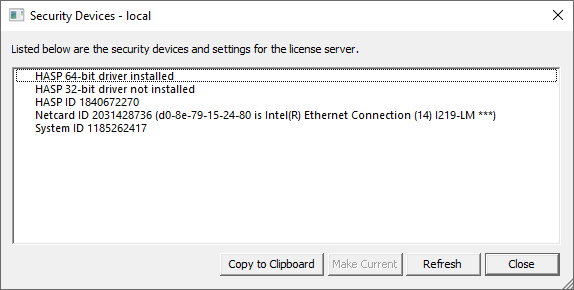
When the dialog opens, it collects security device information and displays it in a list. If NLSM is connected to a running server, this list shows the devices ‘known’ to the NLS server (NLSD).
If not connected, it can only show the security devices that NLSM can find directly, so if you have NLSM configured to view NLS running on another computer but NLS is not running, then the Security Devices dialog will not be available.
Where a particular device (such as a network card) has been specifically selected on the server to match with its license file, that device is marked with an asterisk.
Changing security device
To instruct the server to set its current security device to a particular item, or to specify a device when working on the server computer without the NLS server running, select the desired item in the list and click Make Current.
This will alter the server settings, and if the server is currently running it will be restarted so it can use the newly-designated security device to unlock it’s license file.
Requesting a License
The License File used by the license server is locked to a security device. This can either be a HASP USB key, or a network device on your server computer.
It important that the MAC address you send us is the one that Pulsonix reports and not the one your system reports using the usual methods.
To request a license file based on a network device, use the Copy to Clipboard button to copy the security device information to the Windows clipboard and then email that information to us. We will then be able to create and send you the license file that matches the security device on your server.
You can also access the security device information separately, using the Security Device shortcut on the Start menu.