

The NLS Manager (NLSM) is used to view and control the behaviour of the NLS Daemon (NLSD), the program that actually does the licensing. NLSM can be run either directly on the server where NLSD is running, or on another computer and connecting to NLSD over the network.
The main dialog is divided into three areas.
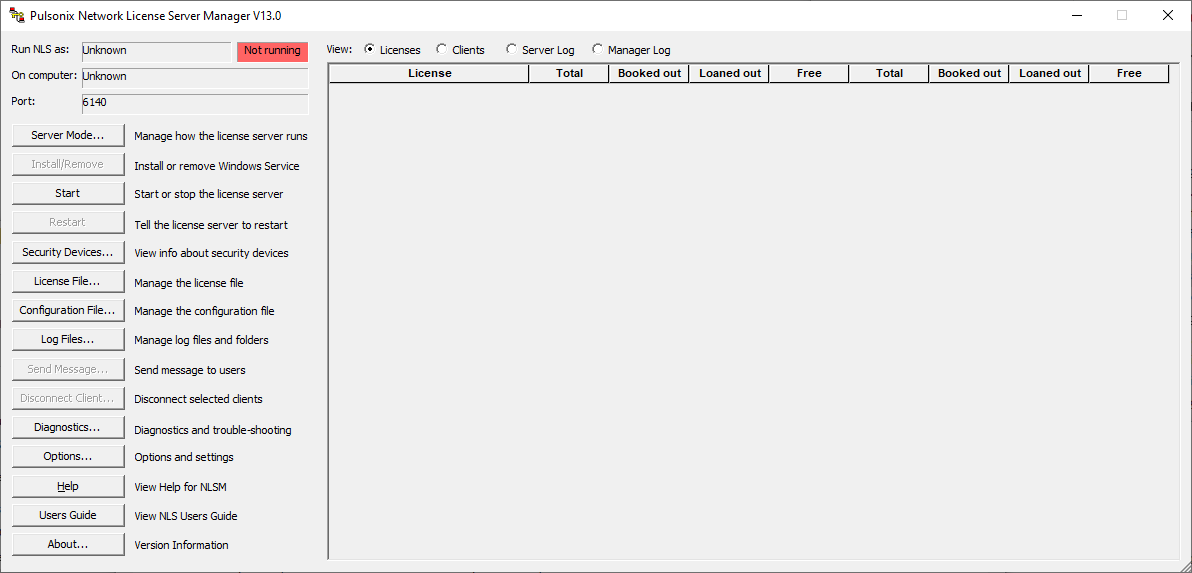
The NLS Manager Dialog Overview
The first of these is a small status display that shows you the basic information about the server and the connection to it. Here we can see that NLS (the NLSD program) is running as a service, on a named computer, and that NLS is already running.
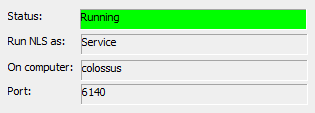
The Status indicator is always a good starting point as to whether NLS is running or not.
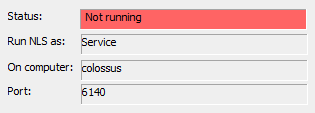
A Not running status looks like this:
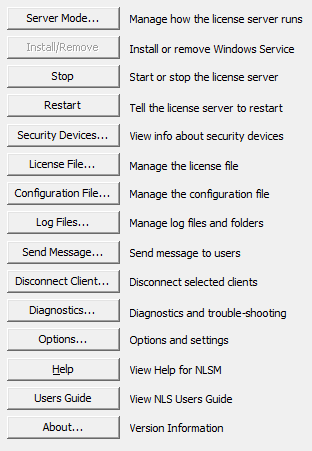
Below this are buttons that you can use to manage the NLS parameters. The action and enabled state of these buttons will depend on your configuration and whether NLS is running or stopped, the service is installed or not, and so on. Each of these buttons is described in more detail below.
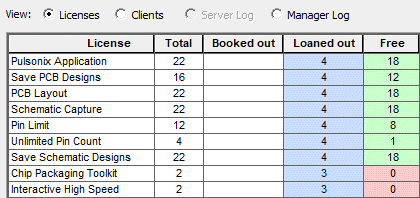
The third area allows you to view information about the server and its operation. Here we can see an example of the Licenses view, showing how some of the licenses that are available, how many are currently booked out or loaned out, and how many are still free to use
How To Use The Main NLSM Dialog
Server Mode
The Server Mode button opens a secondary dialog where you can control whether the NLS runs as a service or program, and either on the current computer or remotely on another computer.
Install/Remove
When Server Mode is set to run the license server as a service, and NLSM is running on the same computer as the server, the Install/Remove button will update its caption to show Install (if NLSD is not yet installed as a service) or Remove (if NLSD is currently installed). When running NLSM remotely, this button is not enabled.
Clicking this button will first prompt you to confirm the action, then it will use the functions of the Service Control Manager (SCM) to install or remove NLSD as a system service. Successful installation or removal will be acknowledged, or if unsuccessful then the appropriate error message is displayed.
Start/Stop
Important: see the notes below about restarting and stopping the license server.
The Start/Stop button will update its caption to show Start if NLSD is not running, or Stop if it is running. Clicking on this button will first prompt you to confirm the action.
If NLSD is configured to run as a service, both Start and Stop will use the SCM to start or stop the service. In some circumstances, particularly when administering remotely, additional operating system permissions may be required to do this; you will be informed about any issues by the error messages displayed.
When configured as an application, the button will not be enabled if NLS is not running and you are administering remotely, as it is not possible to start an application on a different computer. Otherwise, it is generally possible to start NLS as an application locally, or to issue a stop command to the server if it is already running.
Restart
If NLS is running, this button will first prompt you to confirm the action, then it will issue a Restart command to the server. This is normally handled very quickly, and the server will restart itself. The restart is ‘internal’ to the NLSD program, it doesn’t actually stop and restart the application. Also, the server will restart on being given this command even if there are clients currently connected to the server.
Security Devices
The Security Devices button opens a secondary dialog where you can view the security devices available on the computer where the license server runs, and in some cases alter the security devices settings.
License File
The License File button opens a secondary dialog where you can view the current license file settings, and in some situations apply a new license or change the path to the license file to use a different one.
An overview of the licensing process can be found on the Licenses page.
Configuration File
The Configuration File button opens a secondary dialog where you can view the current configuration file settings, and in some situations alter the configuration details.
Log Files
The Log Files button opens a secondary dialog where you can view the log files that are written by the NLS programs. This option is only available when running NLSM on the server computer, because it requires direct access to the folder on the server where the log files exist.
Send Message
The Send Message button opens a secondary dialog which you can use to send a message to one or more of the Pulsonix users who are currently connected to your license server.
Disconnect Client
The Disconnect Client button opens a secondary dialog where you can prompt connected NLS clients to disconnect from the server.
Diagnostics
The Diagnostics button opens a secondary dialog where you can trouble-shoot problems and view diagnostic information.
Options
The Options button opens a secondary dialog where you can set options for the NLSM program.
Help
Click the Help button to view this help file.
Users Guide
Click this button to open the “Pulsonix Network Licensing” User’s Guide. This Guide contains detailed information about NLS installation and configuration.
About
Click the About button to view the license information for this server. You may be requested for information from this server when initially setting up the license.
Viewing Licenses, Connections and Messages
View Licenses
The Licenses view shows you a table of the licenses from the license file, and how many of each license are currently booked out or still available to be booked out.
The values shown in the Free column are green when there are still licenses available, or red when all the copies of the particular license feature are currently in use.
There are two sets of four columns showing license counts; the left-hand group are for normal licenses, the right-hand set will show license counts for Reserved licenses. If you are not using a configuration file to reserve licenses for particular users or groups then the right-hand set of columns will remain blank.
View Clients
The Clients view shows you information about the client applications connected to the server. For each one you can see the total number of licenses assigned to that user.
If your server has the Loan capability enabled, you may also see entries for users who have loaned out some licenses, including the date and time their loan will expire.
View Server Log
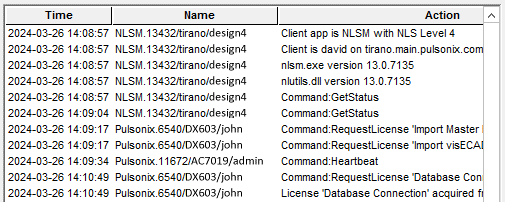
When you are using NLSM on the server itself, it has direct access to the server log files. In this situation, the Server Log radio button is enabled, and the contents of the server log are displayed. The view is refreshed at intervals so you can see new messages appear on the screen as they are added to the log.
The log file shows you what is happening as the server runs and clients ‘talk’ to the server. This includes information about clients connecting and disconnecting, licenses being booked out and returned, and so on.
View Manager Log
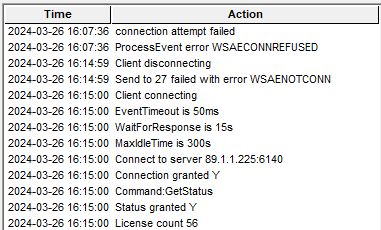
This view shows you what is recorded in the log file for the Manager application itself. This includes information about connecting to and disconnecting from the server, settings that the NLS interface is using, and other details that could be useful for diagnosing problems.
Stopping or Restarting the Network License Server
Stopping or restarting the license server has the same effect from the user perspective, the only real difference being that Restart keeps the NLS Daemon application running and just resetting itself internally.
Stopping When Users Are Still Connected
Care should be taken when stopping or restarting the Network License Server when there are still users connected to it. A warning message is displayed if you attempt to do this. If the server is simply being restarted, the server will attempt to re-establish the link to those connected clients/users, but depending on what the client applications are doing there is no guarantee that communication will be successfully re-established in time.
Therefore, it is recommended that you do not stop or restart the server when client applications are connected. It may however be necessary to restart the server if client/server communications have been disrupted for some reason. Before doing so, it is recommended that you ensure that all the users who might be affected have saved their work.
Related Topics
Configuration File | Diagnostics | Disconnect | Introduction to NLS | License File | Log Files | Options | Security Devices | Server Mode | About Dialog | NLSL Program | Licensing NLS