

When you are using the Network License Server to service clients across a range of locations, sometimes it may be useful to force a client to disconnect from the server. For example, someone may have Pulsonix running on their system but have gone home, which means that this client is keeping all the licenses it has booked out.
The Disconnect Client dialog allows you to send a Disconnect command to one or more of the currently connected clients.
Using the dialog
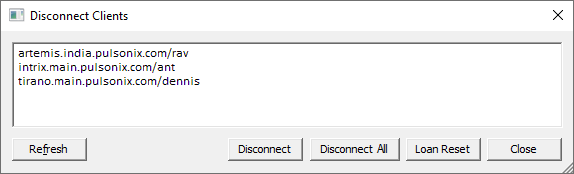
Disconnect
Select the clients you wish to disconnect, then click the Disconnect button.
Alternatively, you can click Disconnect All to disconnect all users.
The server will then be instructed to send a disconnect instruction to those clients. Depending on the refresh interval and network connection speed, this may take a several minutes to have an effect, but what you should see is that the client connection closes itself and releases its booked-out licenses to the pool for someone else to use.
Effect at client end
At the client end, the Pulsonix application will behave as if it has ‘lost’ the network connection to the server. Any Save options that were enabled at the time the connection was broken will still be available, but almost every other command in the application will be greyed-out (disabled). Therefore no work should be lost, simply close and restart the application and the normal license booking-out process will happen.
Loan Reset
In some circumstances you may find that problems have occurred with your Network License Server that has for some reason left licenses ‘loaned out’ when the expiry date has passed. In this situation you may be instructed by our support team that you need to reset the loan to release those licenses back into the pool for others to use.
Important: to apply a Loan Reset command, you will first need to obtain a Reset Code from the Pulsonix support team.