

This tab allows you to set the default properties when an Inserted graph is added to the design using the Inserted Graph option.
Shortcuts
Default Keys: Shift+D
Default Menu: Setup
Command: Design Settings
Locating this option
Available from:
Setup menu > Design Settings option > Defaults > Inserted Graph page
Setup menu > Technology option > Design Settings > Defaults >
Inserted Graph page
Using the Inserted Graph Tab
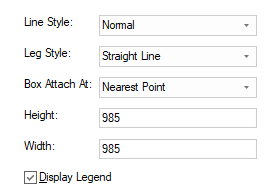
Line Style
Choose the line style from the drop down list defined in your technology. This will be used to draw the shape outline.
Leg Style
Select the required pointer line appearance from the drop down list. Choose between a simple straight line, or a bent line with one 45 degree part and one orthogonal part.
Box Attach At
Select from the drop down list where the pointer line can be attached to the shape. Use Nearest Point for the program to decide the best position, or select to limit the attach point to always be at a corner or in the middle of a side, or both.
Height
Define the height of the inserted graph.
Width
Define the width of the inserted graph.
Display Legend
Checking this allows you to automatically display the legends within the inserted graph. If you switch this off, a legend can be displayed again in the graph by right clicking on it and using Properties.
Related Topics
Technology Line Styles | Properties - Inserted Graph | Insert - Inserted Graph