

This tab allows you to setup parameters which define how various schematics interaction options behave.
Shortcuts
Default Keys: O
Default Menu: Setup
Command: Options
Locating this option
Available from: Setup menu > Options > Interaction page
Using the Interaction Options Tab
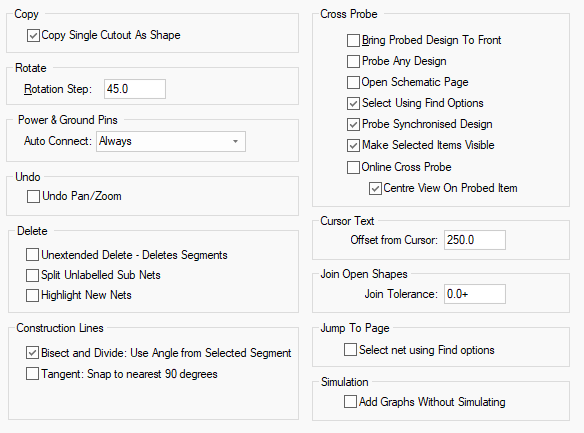
Copy
Check Copy Single Cutout As Shape to make Copy take a single selected cutout and turn it into a single shape on the clipboard. This can then be used by the Paste command within the Insert Cutout and Insert - Merge operations. Leave unchecked to always copy the whole shape containing the selected cutout.
If you copied a single cutout with the “Copy Single Cutout As Shape” Interactive option set, you can paste this as a cutout by preselecting the target shape or another cutout associated with the target shape. The pasted cutout will be added as a cutout to the selected shape.
Rotate
Rotation Step, defines the angle of rotation for the Rotate One Step command.
Power & Ground Pins
When adding components with predefined signals, or a type of Power or Ground on the part pins, you can choose if they are automatically connected to the appropriate net. You can also choose to always be prompted with the Select Signal for Pin dialog before each pin is connected, or for such pins to Never be automatically connected. If there is a choice (for example more than one power net), then you will be prompted anyway.
Undo
Undo Pan/Zoom, allows you to turn off pan and zoom when performing Undo.
Delete
Unextended Delete - Deletes Segments - This option only applies when using Unextended Delete. Check this box if you want to be able to just delete the selected segments and leave the rest of the shape. This option applies to schematic connections, busses and shapes. When a bus is split in two by deleting a segment, the two halves will have the same bus name and signals. When a connection is split in two the two halves will obey the Split Unlabelled Sub Nets option mentioned below.
Split Unlabelled Sub Nets - If this is checked, after running delete on a labelled named net, any new sub nets that have been created and are unlabelled will be split from their old net to form new unnamed nets. This switch has no effect if both sub nets are labelled.
A Warning will be given allowing the user to cancel the delete if required. Leave the option unchecked to keep the unlabelled sub nets on the same net.
Note: an unlabelled sub net is one that does not display its net name and does not have a signal reference documentation symbol with a predefined net type or name. These can be found using the Electrical Rules Check option.
Highlight New Nets - If this is checked, after running Delete any new nets that have been added will be highlighted. Use this with the Split Unlabelled Sub Nets option to easily see which sub nets have been split to form new nets after the deletion.
Construction Lines
Bisect and Divide: Use Angle from Selected Segment, with this mode selected, when using Bisect or Divide, instead of using a horizontal or vertical line, it will use the segment selected regardless of its angle. Without this option selected, you can enter Selected Segment mode by pressing the Ctrl key when choosing the segment.
Tangent: Snap to nearest 90 degrees, with this option selected, when using Tangent mode, the Construction Line will be added at 90 degrees rather than wherever the cursor is in free movement mode.
Cross Probe
Bring probed design to front, when checked, causes the window of the probed design to come to the front. This may be desirable is you are using Cross Probe to perform some interactive operation in the probed design.
Probe Any Design - Uncheck this to only probe the design with a matching name to the one you are currently editing. If there is no matching design, all open designs will be probed.
Open Schematic Page - Check this box to automatically open the schematic page containing the probed item if it is not already open.
Select Using Find Options - Check this to cause the corresponding probed item to be found using the same settings used in the find bar. Example: Flash It!
Probe Synchronised Design - Check this to find the probed item in the synchronised design.
Make Selected Items visible - When this option is checked, any selected items in the design
(selected via cross probe) will attempt to become visible and turn on their layer so they can be
seen following the probe. The default is for this to be enabled (to always make visible).
With this option unchecked, layers will not be switched on (or redrawn) which is helpful for very
large designs where one might not want layers toggling after a cross probe.
Online Cross Probe - Check this to enable automatic Cross Probe while selecting items.
Centre View On Probed Item - When enabled, selected items from an online cross probe can be centred on the view in the other design to make it obvious where the selected item is..
Cursor Text
Some interactive operations may display information text next to the cursor. Use Offset from Cursor to define how far this text is from the cursor. You can also use the Reposition Cursor Text command whilst cursor text is displayed to change its position relative to the cursor.
Join Open Shapes
Set the Join Tolerance that will be used by the Join Open Shapes function. If the adjacent ends of two open shapes are within this distance they will be joined together.
Other Options Tabs
| General Options: | Design Backups | Display | Edit Shape | File Extensions | Find | Folders | General | In-Place Names | Macros | Move | Multi-Screen | Pan & Zoom | Resolve Net Names | Select | Synchronisation | Tooltips | Warnings |
| PCB Options: | Edit Track | Interaction | Online DRC | Track Length Limits |
| Schematics Options: | Edit Connection | Online ERC |
| Footprint Options: | Edit Breakout |
Related Topics
Attribute Names | Delete | Cross Probe | Join Open Shapes | Rotate One Step | Select Mode | Part Editor - Net Names on Pins