

Python is a high level general purpose scripting language used by two Pulsonix features:
- Scripting API: By installing Python, you can use a Python package to write scripts that can interact with Pulsonix. Requires Python 3.10+.
- Export IBOM: By installing Python, you can export an interactive HTML bill of materials. Requires Python 3.8+.
Installation steps
- Run installer: Visit python.org/downloads and download an appropriate installer for Python, then run it.
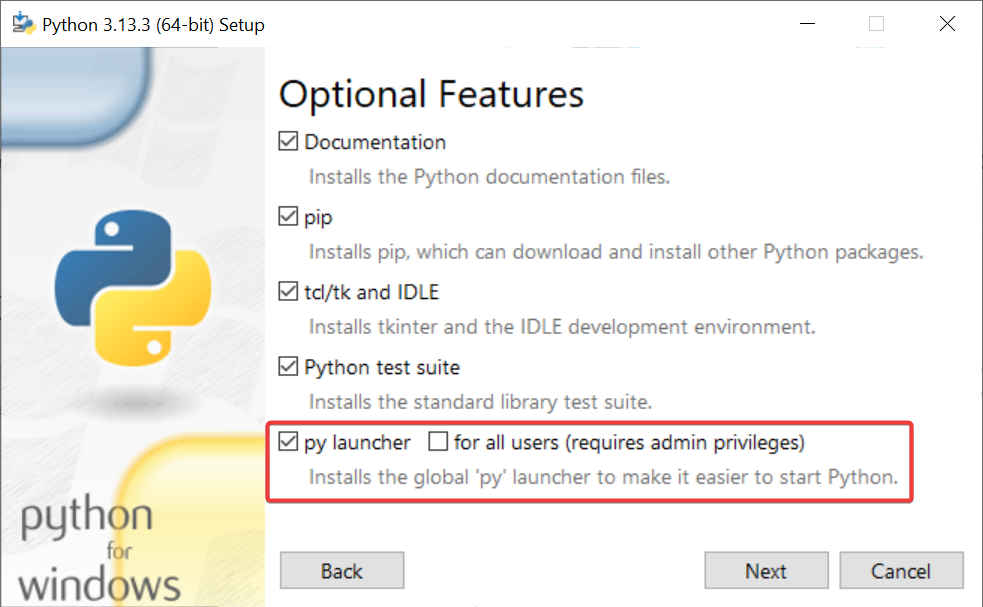
- Install the launcher (recommended): Selecting this option in the Customise installation menu of the installer will allow Pulsonix to automatically find and use Python. This recommended especially if you will have multiple versions of Python installed. This option is enabled by default for new Python versions.
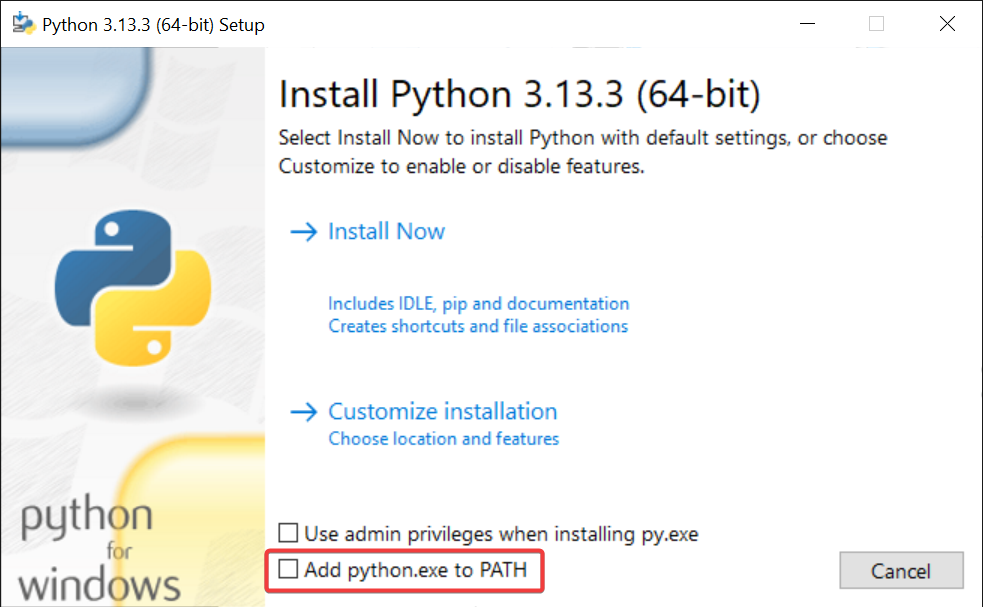
- Add python.exe to PATH (optional): Selecting this option in the installer will make Python available
on command prompts via the name
python. This can also make it easier for Pulsonix to find your installation, but only one version of Python can be on the PATH at a time.
Verifying your installation
- If the launcher was installed, you can use the command
py -0pon a command prompt to see which versions of Python are installed on the system and where they are located. - If python.exe was added to the PATH, you can use the command
python --versionto see which version is available on the PATH. - If Python is not on the PATH and the launcher wasn’t installed, navigate to the folder containing
python.exein a command prompt and use./python.exe --versionto see which version was installed. - Before checking whether Pulsonix can find your installation, you must restart the Pulsonix application to update what it sees on the PATH.
Note that Windows installs shortcuts to the Microsoft Store on the PATH, so attempting to run Python when it has not been correctly installed may redirect you to the store.
Installing packages
To install packages, open a command prompt and use the command <python> -m pip install <package>, where <package> is the package name an <python> is one of the following, depending on your installation:
pythonif the desired version of Python is available on the PATH.pyif the Python launcher is installed and the desired version of Python is set as the default.py -<X.Y>where<X.Y>is the desired version of Python.- Otherwise, the path to the desired Python interpreter - for example,
C:\Users\Username\AppData\Local\Programs\Python313\python.exe.
Note that packages must be installed for every Python version that they will be used with.