

This dialog is used to select and define shortcut keys for Pulsonix. Shortcut keys offer an alternative method of performing actions for users who prefer the keyboard to the mouse. Any command may be assigned to a given key or keyboard combination. The command can then be performed simply by pressing the assigned shortcut key.
Shortcuts
Default Keys: None
Command: Shortcut Keys
Locating this option
Available from: Tools menu > Customise dialog > Shortcut Keys tab
Shortcut Keys
Pulsonix comes with a predefined set of Shortcut Keys for its most commonly used operations. These are however, the default set supplied and may be changed, removed or added to according to your own personal preferences using the Keyboard tab on the Customise dialog located on the Tools menu.
If a command, to which a Shortcut Key is assigned, is available from a menu, the Shortcut Key combination is displayed alongside the option in the menu. Also, optionally, Shortcut Keys can be included in the tooltips displayed for toolbar buttons.
Modifying Shortcut Keys using the Keyboard dialog
The Keyboard dialog allows you to query, remove or add to the Shortcut Keys currently assigned to commands.
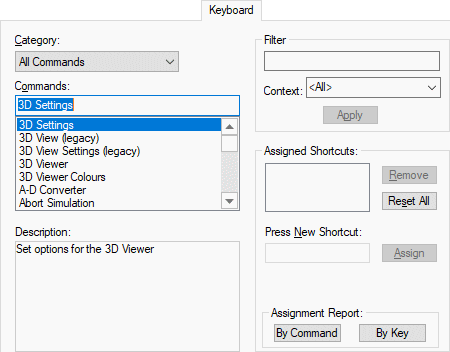
Category
The Category list, in the top left of the dialog, allows you to restrict the list of commands shown to only those in the chosen category. Select All Commands to see a complete list.
Commands
The Commands list shows the commands to which you can assign a shortcut key. The currently selected command is shown in the box at the top of the list. The commands can be filtered to make them easier to locate.
The Description box displays a brief description of the currently selected command.
Filter
Use the Filter box to find command names which contain a given string, or are only available within the Context of a given design type. Type the name or part of the name you wish to filter on. You must press the Apply button to apply the selected filter. Note that the filter will be applied within the currently selected Category.
To assign a shortcut, type the key into the box positioned below the prompt Press New Shortcut:. Clicking the Assign button will assign this shortcut key to currently selected command. If the key is already assigned to another command it will be displayed below Assigned to: and you be able to Reassign instead.
The Reset All button resets all shortcuts to the Default shortcut keys as defined in the application.
The Assigned Shortcuts list shows any shortcuts currently assigned to the command. You can assign more than one shortcut to the same command, but you cannot assign the same shortcut to different commands. Clicking the Remove button removes the currently selected shortcut.
You can also identify a command by its currently assigned shortcut. To do this, in the Press New Shortcut box, press a key or key combination, on the keyboard. If assigned, the shortcut it relates to will be identified under Assigned to:.
Assignment Report
The Assignment Report buttons produce a report of all the currently assigned shortcut keys. The list can be sorted By Command name or By Key.
Customise Dialog Tabs
Commands tab
Toolbars tab
Tools tab
Menu tab
Keyboard tab
Application Look tab
Options tab
Related Topics
Default Shortcut Keys | Generate Reports | Workbook Mode | Status Bar | Toolbars | Button Appearance | Edit Button Image