

The user interface in Pulsonix is logical and follows a left to right flow through your design process.
User Interface and Framework
The main caption across the top of the Pulsonix product (the ‘framework’) displays a number of useful pieces of information:
- Product Name (Pulsonix)
- Application currently in use, for example, PCB Design, Schematic Design etc.
- Design Name
- Variant name - shown next to the design name
- An asterisk \* - shown next to the design name, this is displayed if your design has had modifications made to it but not yet saved.
- Each workbook tab or design shows the design name along with the application type (Schematics, PCB, 3D etc.)
- Within each design there are pop-up toolbars or browsers that are available during the design process.
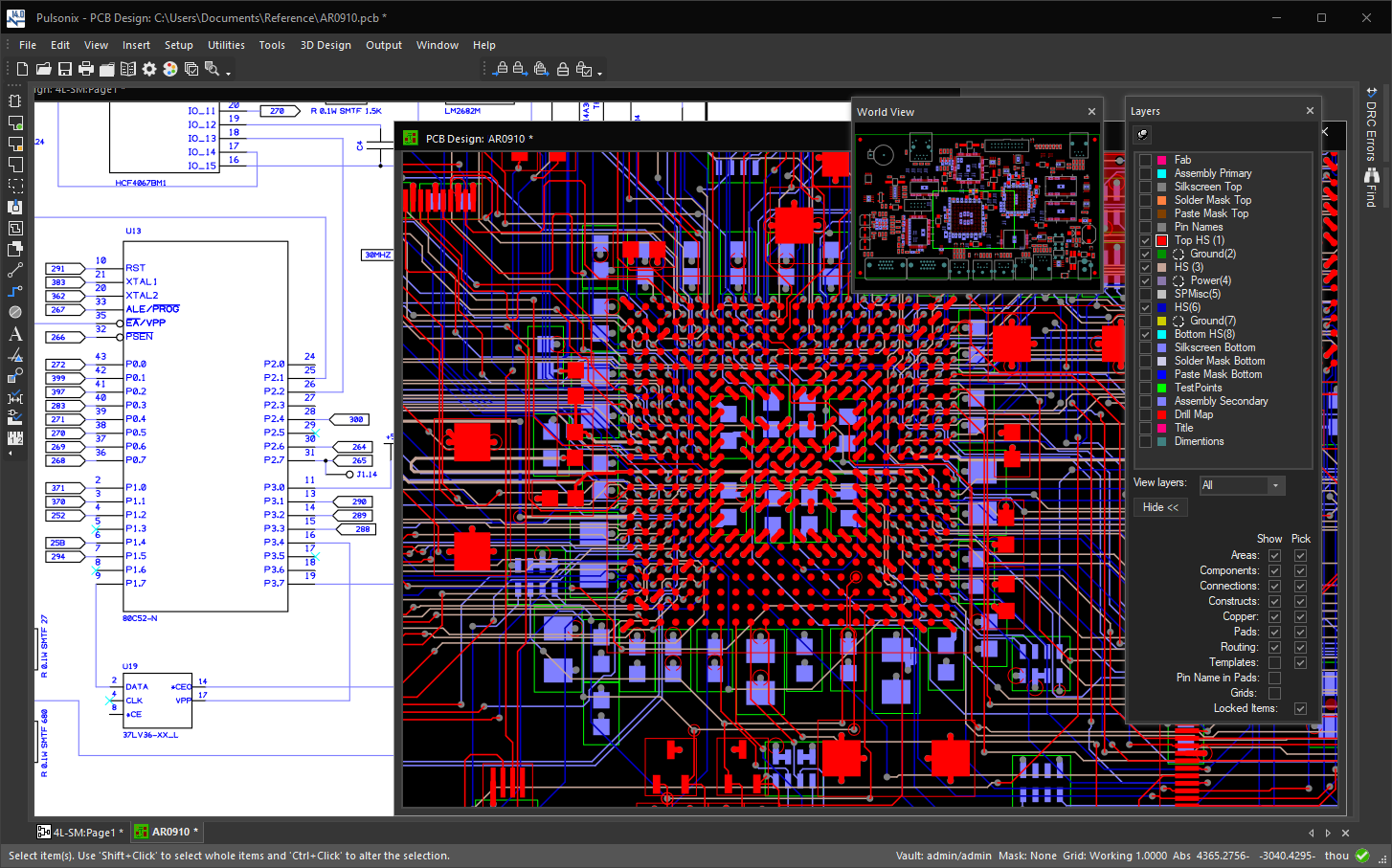
Light and Dark Mode
The user interface can be tailored to suit your requirements. For example, use the Customise - Application Look dialog to switch between Dark and Light modes.
Toolbars
Toolbars feature within the user interface. The Menu bar toolbar along with both application relevant and process relevant toolbars.
Toolbars are activated from the View menu or by right clicking on the Pulsonix framework (any area of the product that isn’t design area).
See also: Menu bar
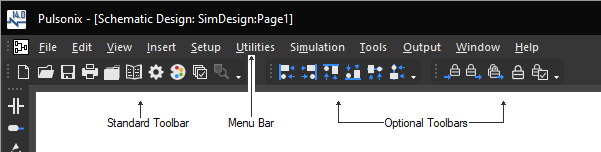
The Standard Toolbar containing many familiar Icons common across Windows applications but also, in the central section, all the Icons relating to the key features of Pulsonix: Libraries, Folders, Technology, Options, Grids and Colours.

The PCB Toolbar and Schematics Toolbar (both only part shown ) contain buttons associated with the specific design functions in PCB and Schematics.
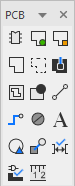      
      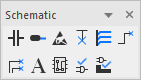
Hovering over any of the icons reveals a tooltip showing you the button function and any shortcut assigned to it. All toolbars can be customised and repositioned. You may also add your own Toolbars.
See also: Toolbars and Customise dialog overview
Workbook Mode
Workbook Mode presents a set of tabs along bottom of the view screen each of which is a currently open design. This enables you show the open designs and to quickly switch between designs.

To activate the Workbook mode, from the View menu, click Workbook Mode. Select it again to toggle it off. Workbook mode is on by default.
See also: Workbook Mode
The Status Bar
The Status Bar at the bottom of the design window provides essential property information relating to the currently selected design item or item being edited. As an active bar, it also provides access to design-related features, such as Grids, Units and Variants. These are accessed by double-clicking on the relevant feature name on the status bar.

To activate the Status bar, from the View menu, click Status Bar. Select it again to toggle it off. The Status bar is on by default.
See also: Status Bar
Browser Windows
Dockable browser windows are available during the design process and provide quick access to commonly used functionality, such as the World View or Layers Bar.
Each of the browser bars are activated from the View menu, or by right clicking on the Pulsonix framework (any area of the product that isn’t design area) and selecting the browser bar required from the list.
Browser bars are available for the following:
Colour files
Component Bin
Database Connection
Design Browser
DRC Errors Browser (PCB)
ERC Errors Browser (SCM)
Find Bar
Inspector Bar
Layers (PCB)
Part Browser
Rules Spreadsheet (PCB)
Selection Masks
Shape Information
STEP Hierarchy (3D)
Toggle Layers
World View
Customise
World View
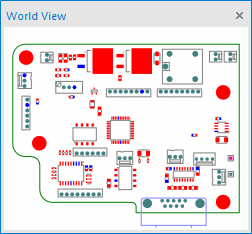
The World View gives a complete view of the design showing the area within the overall design occupying the design window. You may also manipulate the graphics within the World View by framing areas to zoom in/ zoom out and zoom in/out within the World View with the mouse wheel.
World View is activated using the shortcut key ‘w’ or from the View menu, select World View or by right clicking on the Pulsonix framework (any area of the product that isn’t design area).
Related Topics
Menu bar | Toolbars | Customising Toolbars | Workbook Mode | Status Bar | Application Look | Dockable Windows