

The Send Message dialog allows you to send a brief message to one or more of the currently connected Pulsonix users.
Using the Send Message dialog
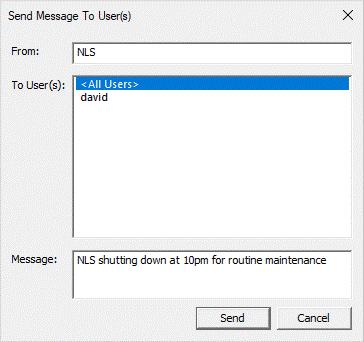
Enter the name you want to appear as the sender of this message. The default is your currently connected user name.
Choose from the list of connected users. You can use the normal listbox controls (Shift and/or Ctrl) to select multiple names, or select the special entry <All Users> to message all connected users.
Enter the desired message in the last box on the dialog. This box will accept the Enter key to break your message onto multiple lines.
Click the Send button to send your message.
Message delivery
Your message will be added to the message queue for each of the users you have chosen. The next time that the Pulsonix client application that each user is running checks back with the server for any messages pending, they will be retrieved and displayed on the client screen as a popup message box like this:
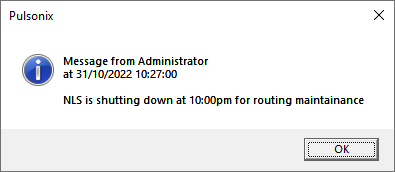
This message box is separate from the main Pulsonix application, allowing the user to carry out tasks such as saving their work before closing the message box.
Note that the message system does not include any form of acknowledgement back to the server from the client - it is purely a ‘queue and forget’ operation.