

The Check Out dialog for design items is accessed using the Check Out button in the Vault Browser, a page on the Vault Manager dialog.
Select one or more items from your design content and click Check Out.
Using the dialog
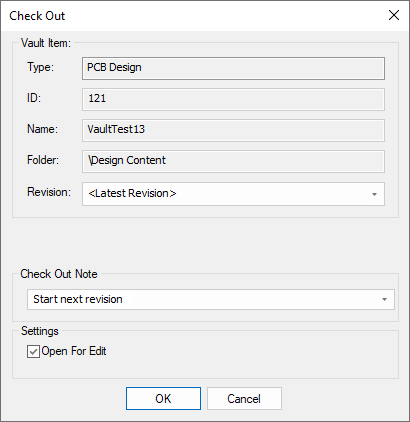
Vault Item information
Vault information for the selected item is displayed in the upper part of the dialog. This may be displayed as <Multiple Items> if you have chosen more than one item to be checked out.
Revision
This shows which vault version of the item is to be checked out and by default will always show the <Latest Revision>. Other versions may be selected by choosing from the drop-down list. It will be unavailable if more than one item has been selected.
Check Out Note
Enter a suitable note or comment in the box provided or select one from the drop down list. These will be recorded in the Audit Trail for the Check Out action.
Settings - Open For Edit
Check this box to have the checked out design item opened in the application once the OK button is clicked.
Using the Mirror Vault Folder
If you leave Open For Edit unchecked, you can still access the checked out item later on by locating it in the Mirror Vault Folder structure in your own file system.