

This dialog is used to configure and loan out licenses from the Network License Server.
How to use the dialog
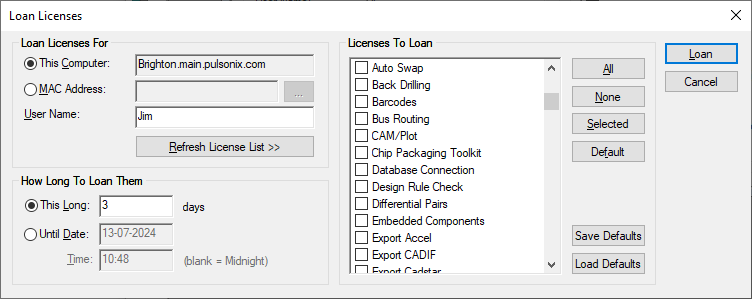
Browse License For
This section of the dialog allows you to specify the device you would like the license to be loaned out to. You can select This Computer to have the loan license bind to the current computer, otherwise select MAC Address to specify a network device to have the loan license bind to. When MAC Address is selected, use … to select from a list of network devices on the current computer. You will also need to specify the user of this license in the User Name edit box.
Refresh License List
Refreshes the list of available licenses that can be loaned out.
How Long To Loan Them For
This section of the dialog allows you to specify the period in which the loaned license will be valid for. This Long allows you to specify the amount of days you will require the license for. Until Date specifies the date and time in which you want the license to expire on.
Licenses To Loan
This section of the dialog displays the list of available licenses that can be loaned out. A checked license
means that you want to loan out this license.
Use the All button to quickly check all available licenses.
Use the None button to uncheck all licenses. You can select multiple licenses in the list by holding Ctrl
and left clicking on the license name. Alternatively, you can left click and drag to select multiple licenses.
Selected
With a selection, use the Selected button to check all of the selected licenses.
Default
The Default button is used to quickly check the most common loaned licenses. The list is below.
Save / Load Defaults
Using the Save Defaults and Load Defaults buttons is a quick way to save a selection of checked licenses and load them again for later use.
Loaning Out a License
Once the loan is configured, you can use the Loan button to then loan the checked licenses out from the Network License Server.