

What is Network Licensing?
Network (or “Floating”) Licensing allows you to use your Pulsonix software in a more flexible manner, sharing the use of your available licenses across a number of different users.
How does Network Licensing work?
As with the Node Locked Licensing, Network Licensing also relies on the protection provided by a License File and a Security Device. Unlike Node Locked licensing, however, this License File and Security Device are only required on one computer (called the “Network License Server”). The Pulsonix program communicates with this server to get the licenses it needs.
As with Node-Locked Licensing, both the Security Device and the License File for the Network License Server are initially installed or prepared by the application Setup program (by choosing “Network License Server” as the Licensing option). Once this has been done, the License Manager can be used to select a Network License Server and view the available licenses.
Using Network Licensing
To set your system up to use Network Licensing, you should first ensure that the Pulsonix Network License Server has been installed and is running. The License Manager will need to be able to access a Network License Server to check that everything is running properly.
Switch to Network License mode
On the main License Manager dialog, click on the “Network License” radio button.

Some of the items on the lower part of the dialog will now change to allow you to set up and view the Network Licensing information. To start with, the License Manager doesn’t know where to find your Network License Server, so some of the fields will be empty.

Specify the Network License Server
Now you will need to enter the name of the computer on which your Network License Server is running. Click on the “Find Server” button to open the next dialog.
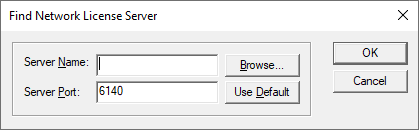
Either type in the name of the computer, or press “Browse” and choose from the list of computers. Note that depending on your operating system(s) this list may not include all the computers on your network, so it may be easiest to simply type in the computer name yourself.
When you have entered the computer name, press “OK”. The program will check that there is actually a Network License Server running on the specified computer, then this dialog will close.
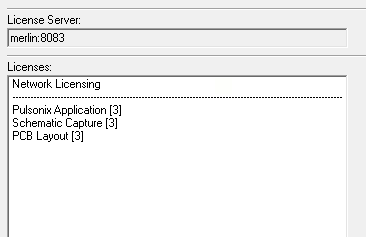
On returning to the main dialog, a list of the licenses that are available on the Network License Server will be displayed, at which point you are ready to use your main Pulsonix application.
Port Numbers
When specifying the name of the Network License Server computer, there is also an option to specify a “port” number. The default port number will rarely need to be changed, and is generally only changed under the direction of our Technical Support team if there are communication problems with the Network License Server.
LOAN Licenses
The LOAN License facility is a cost option for users who already have the Network License Server (NLS) system. This facility enables you to book out licenses in-house, and then take the notebook PC off site and continue using a Pulsonix license. The license is then booked back into the server system once you return to the server site.
LOAN licenses can be booked out for a maximum of 7 days from the first date of being booked out. Licenses can be booked back in and out again and the 7 day period then restarts.