

The NLSL program allows you to view Log Files created by NLS.
Note: you can only use the log files dialog when you are running NLSM on the same computer as the license server, as it requires direct access to the file system of the server computer.
Viewing the Log Files in NLSL
To view the contents of a log file, in the NLS program under Log files, select the file in the list, and click the View button. By default, log files will be opened in the dedicated NLS log reader (NLSL).
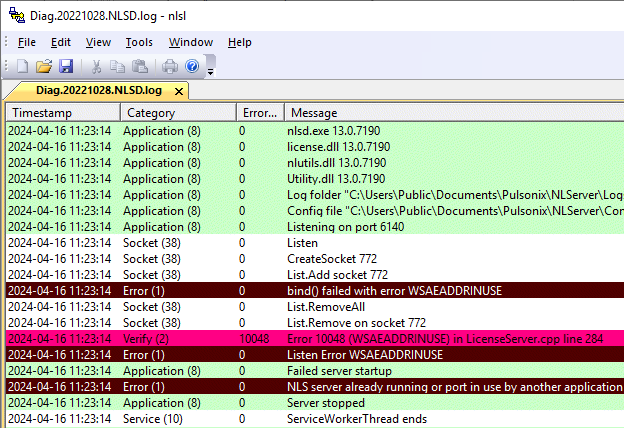
Most of the information normally recorded in the log file relates to applications starting and stopping, and booking out and returning licenses. If you have been advised to use any additional diagnostic settings to help with trouble-shooting problems, you may see other entries in the log file.
Using this dialog
Once a log file is displayed, you can use this dialog to view more detailed information about the log files.
Using an alternative log file reader
If you prefer, you can opt to have the file read by another program. In the NLS program, uncheck the View with NLS Log Reader box and the files will be opened by whatever application on your system is configured to read “.log” files.
Sending information to support channel
When you have one or more log files selected in the list, the Email button becomes available. When you click this button, you will be prompted to provide a name for the Zip file which will be created. This Zip file will include the selected log files, the License.ini file that contains licensing settings, and if NLSM is running on the server it will also include your NLS configuration file (.NLC) if you have one defined.
Once the Zip file is created, it should be opened in your current default email application, ready to send to the relevant support location.