

This dialog is displayed when a Graph has been inserted into a Schematic design.
Shortcuts
Default Keys: I or Alt+Enter
Default Menu: Edit
Command: Properties
Locating this option
Available from: Context menu > Properties option
The Insert Graph Option
After inserting a graph into a design, you can select it and display Properties.
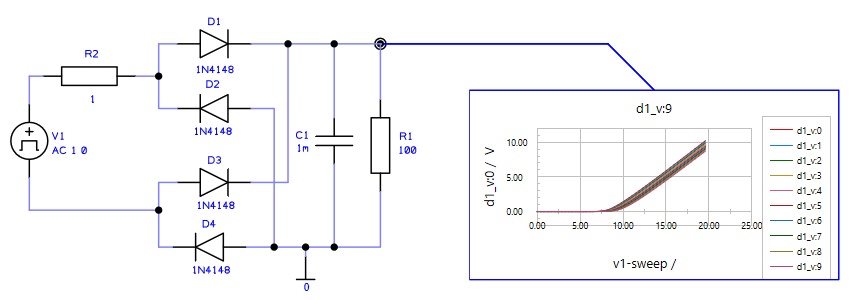
The dialog presented gives information about the graph:
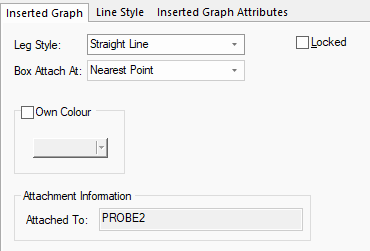
Leg Style
Select the required pointer line appearance from the drop down list. Choose between a simple straight line, or a bent line with one 45 degree part and one orthogonal part.
Box Attach At
Select from the drop down list where the pointer line can be attached to the graph. Use Nearest Point for the program to decide the best position, or select to limit the attach point to always be at a corner or in the middle of a side, or both (corner and Sides).
Locked
You can lock or unlock the graph using this check box. It will lock it’s position from accidentally altering it. When locked, a warning dialog will be issued every time the item is moved.
Own Colour
Graph shapes can be drawn in their own colour, this colour is used irrespective of the colour defined for that item in the Colours Dialog.
Attachment Information
This is a fixed field and informs you of the item that the graph is attached to.
Leg and Graph Line Style
The Leg and graph line style used is selected from the Line Style tab.
Graph Details
Graph details are defined by selecting the label or series entries within the graph itself. These are detailed on the Inserted Graph page.