

Using this dialog, you can import a list of new Vault users from a CSV file such as Windows Accounts. Clicking OK will validate the potential users and if valid, a report will be generated for you to check that you are happy with the results. Yes indicates that the potential users are correct and the list of users will be added to the Vault. No will cancel the import.
Using the dialog
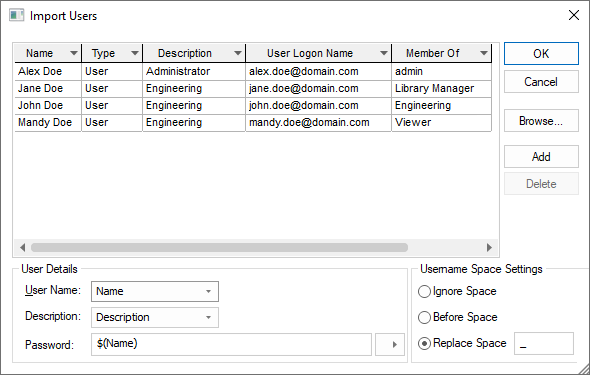
When the dialog is first displayed, you will need to click on the Browse… button to select a CSV file to import. Once a file has been selected, the contents of that file will be displayed in the grid. We treat the first row of data in the file to be column headers.
Once the CSV file has been loaded, you can make changes to the data using the grid. You can also remove rows from the grid using the Delete button. Additionally, you can add a blank row using the Add button.
An additional grid column Member Of will be added to the loaded CSV data. This column allows you to select which Vault group the potential user will be a member of. This can be done by clicking on the corresponding cell and selecting a group from the cell combo box. Right mouse on a cell under the Member Of column will give you an option to Apply to Column where the value of the current cell will be applied to all cells in this column.
User Details
The Username combobox and Description combobox will automatically fill with the column headers once a CSV file has been selected. Use these controls to mark which column is associated with the new Vault user name and their description.
The Password control allows you to create a template password which will be applied to all the user accounts when imported. You can add built in tags using the Right Arrow button to the right of the password control.
Built In Tags
- Random String - Using this tag will generate a random series of characters of the length specified by the replacement of the ’#’ character. An Example would be $(RandomString10) which indicates that the random string will be 10 characters long.
- Name - Using this tag will add the user’s name.
Username Space Settings
Vault user names are not allowed to contain spaces. In the event that the imported name contains spaces, you can select what action will be applied:
- Ignore Space - All spaces will be removed.
- Before Space - Only the text before the space will be used.
- Replace Space - All spaces will be replaced by the specified character.
CSV File Syntax
As a basic CSV file, the user list expected is open but must contain a column of user names and a column of descriptions. An example user list is:
Name,Type,Description,User Logon Name,Member Of
Alex Doe,User,Administrator,alex.doe@domain.com,Admin
Jane Doe,User,Engineering,jane.doe@domain.com,Library Manager
John Doe,User,Engineering,john.doe@domain.com,Engineering
Mandy Doe,User,Engineering,mandy.doe@domain.com,Viewer
Blank entries are acceptable in the Description column provided they are enclosed between commas.