

This dialog allows you to setup and run dynamic checking for diagnostic purposes.
Locating this option
Available from: Design Properties - Statistics > Design Verify button
Using this option
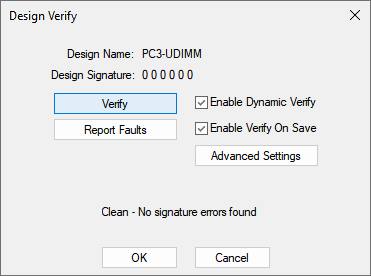
Design Name:
This displays verification of the design name being checked.
Design Signature:
The 6 number Design Signature value presented shows if any faults have been found in the current design. The fault free situation is shown by 6 zeros. Use the Advanced Settings button to access the Advanced Dynamic Verify Settings dialog from where you can change the checks to be performed.
Verify
Pressing the button starts the verification process.
Report Faults
Select this button to display a report of the verification results.
Enable Dynamic Verify
This check box enables you to switch the dynamic verify option on all the time to be run in background. With it left unchecked, design verification is only performed when the Verify button this dialog is pressed. Note: checking this option enables the design verification to be run in another thread, thus not using system resources when using Pulsonix.
Enable Verify On Save
This check box enables you to automatically run a design verification when Save is performed. This gives an additional validation that your design is clean and alerts you to any potential issues. Note: this is for only Save and not on a Save As.
Advanced Settings
Use the Advanced Settings button to access the Advanced Dynamic Verify Settings dialog from where you can change the checks to be performed.
Verification Message
Once run, a message will verify the status of the design and any errors found.
Related Topics
Design Properties - Statistics | Advanced Dynamic Verify Settings