

The diagnostics dialog is used to view information that might help with trouble-shooting problems or resolving issues with the licensing.
Using the dialog
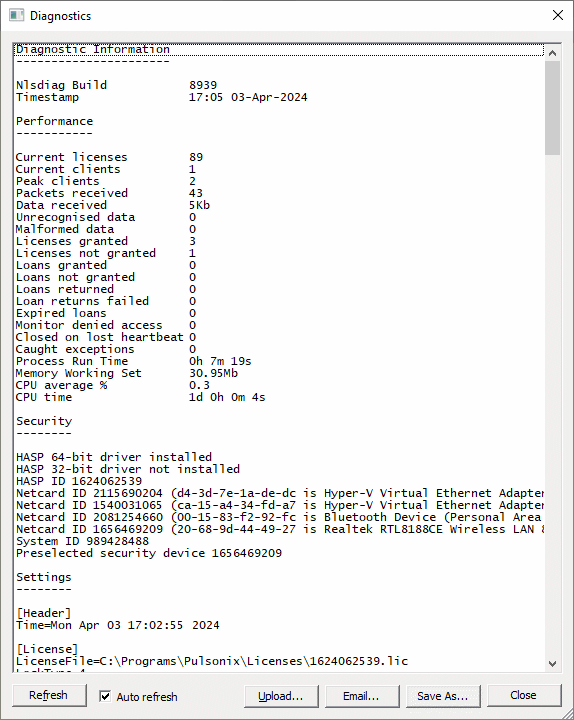
The information displayed here will vary depending on the version and build of the server software, whether the NLS server is running, and whether you are running NLS Manager on the server computer.
The list includes information such as operating system details, metrics about how long the server has been running and its CPU and memory usage, security device details, and version and build numbers of the various software modules used by the server.
Refresh
Use the Refresh button to update the list.
Auto Refresh
Check the Auto Refresh check box force an automatic refresh of the list.
Upgrading Diagnostics
The Diagnostics dialog has a built-in mechanism for getting additional or enhanced diagnostic information from the server.
Upload
If the NLS server is running, you can click the Upload button to upload a fresh copy of the ‘nlsdiag.dll’ program module to the server. This is the module that the server program uses to acquire diagnostic information and send it back to the connected client (in this case the NLS Manager).
Click the Upload button, browse to the new NLSDiag.DLL you have been given, and click OK. It will be uploaded to the server, and if no errors occur then the new information will appear as the diagnostic dialog refreshes itself.
Emailing diagnostic information
You can use the Email button to send a copy of the diagnostic information to your Support channel, or Save As to save the details to a text file.
Saving diagnostic information
Use the Save As button to save the current diagnostic report to a file.