

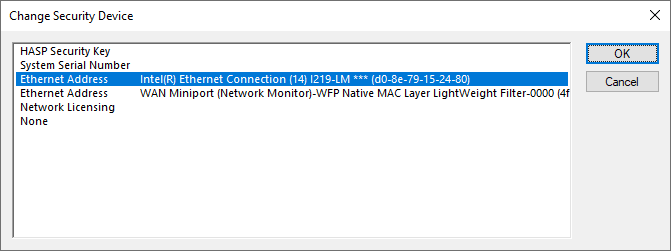
This dialog is used to inspect and change the security device. Your license will be locked to one particular lock type which will automatically be detected by the program from the license file. This dialog is useful if you have multiple possible MAC addresses that can be accessed and you wish to change to a different one listed.
How to use the dialog
USB Key Drivers
When you first install Pulsonix, you should NOT attach the key, but instead, allow the system to install the USB driver that is supplied with Pulsonix to be installed. It is important that the Windows USB driver is not used; the one supplied by Pulsonix is specific to enable the program to operate correctly.
The license is automatically checked when the License Manager program is first started. If the driver is not found, a message box will appear:
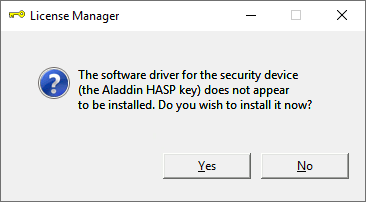
If your security device requires a driver that is not currently installed, the “Install ” button will be enabled. Press this button to install the device driver.
If the program is unable to locate your Security Device, any relevant messages about the status of the device will be displayed here. This may help you for example to determine whether or not the device is correctly connected, any necessary device driver is properly installed, and so on.
Once the USB key driver has been successfully installed, you can attached the USB key.
Note: for installation of the HASP device driver you will require administrator privileges.