

Use this dialog to define which grid is currently being used when moving or editing items of the given type - Component, Testpoint, Text, Track, Via and Panel PCB Item.
Shortcuts
Default Keys: Alt+G
Default Menu: Setup
Command: Grids
Locating this option
Available from: Setup menu > Grids option, Interactive tab
How to Use This Dialog
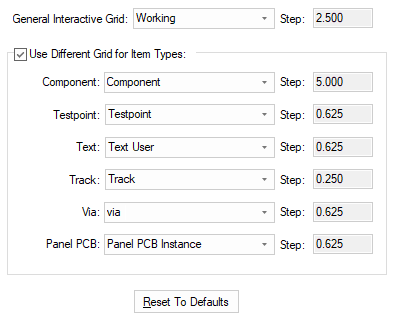
General Interactive Grid
The General Interactive Grid: is used to display the grid that will be used during interactive operations. This is used when the Use Different Grid for Item Types check box is not selected. The grid selected from the list will be displayed along with its value next to Step:. The Step: value is taken from the item value on the main Grids page.
Use Different Grid for Item Types
When this check box is selected, you can define the grid that specific design items will use - Component, Testpoint, Text, Track, Via and PCB Panel. For each selected grid, the Step value is displayed. Uncheck this option to just use a single grid for everything (General Interactive Grid).
Reset To Defaults
The Reset To Defaults button will be available if any of the grids are not the same as the Tools Grids, then it will reset all the interactive grids.
Units
The Units button allows you to locally switch between Metric and Imperial units whilst in this dialog. Once the dialog is closed, the units revert back to the original design units. If switching to different units to the design units, the value typed will be converted when you next enter this page.