

Properties represent the detailed information held by Pulsonix about each and every item that exist in a design. You may need to access this information to query a particular aspect, for example the layer of a given copper item. Each type of design item has its own unique dialog to display relevant information. The properties dialogs also allow you to change specific properties using an easy to use dialog driven interface.
Context sensitive help is available for each unique properties dialog by pressing the F1 key while it is displayed, or looking under Properties in the Help Index.
Inspector Bar
It should be noted, that as well as the item Properties dialog, you also have the dockable Inspector Bar window that can be used. This provides the same information as the Properties dialog but is available all the time, displaying dynamically as the item is selected.
Shortcuts
Default Keys: I or Alt+Enter
Default Menu: Edit
Command: Properties
Locating this option
Available from: Edit menu > Properties option
Available from: Context menu > Properties option
Available from: Shortcut key > I
How To Use Properties
For the selected design item, press the assigned shortcut key (i).
Alternatively, select the Properties option from the Edit menu or by right clicking and selecting Properties from the shortcut menu.
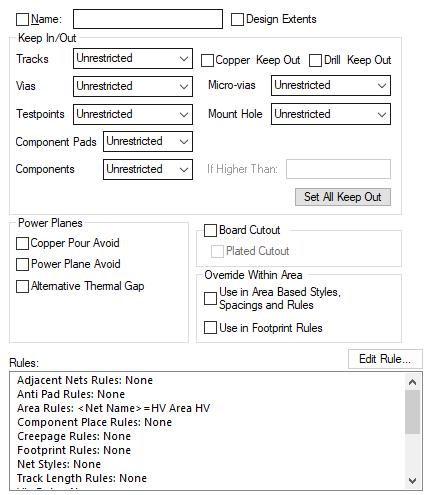
Edit Rule
The Edit Rule button is used where dialogs have rules associated with them. You can select a rule in the list and the Edit Rule button will be enabled. Pressing the button will apply the Property page, quit the dialog and run the corresponding rule page in the Technology, with the appropriate rule selected.
Latch Mode
Properties can be used in Latched Mode allowing you to display item properties simply by clicking on the item.