

Use this to insert cutout shapes into existing shapes and areas within the design.
Shortcuts
Default Keys: None
Default Menu: Insert
Command: Insert Cutout Polygon
Default Keys: None
Default Menu: Insert
Command: Insert Cutout Rectangle
Default Keys: None
Default Menu: Insert
Command: Insert Cutout Circle
Default Keys: None
Default Menu: Insert
Command: Insert Cutout Triangle
Default Keys: None
Default Menu: Insert
Command: Insert Cutout Text
Toolbar: Select Shape
Default Keys: None
Command: Select Shape as Cutout
Locating this option
Available from: Insert > Cutout.
What are cutouts used for?
Cutouts are used to define a void within the boundary of a shape. The cutout is associated with the shape and moves with it. Deleting a shape also deletes all the associated cutouts.
If a cutout shape crosses a boundary of the parent shape, the boundary will instead be adjusted to exclude the cutout area. If multiple boundaries are crossed, additional shapes may be created.
The Items Cutouts Can Be Used On
Cutouts can be used on all electrical and documentation shapes provided that the boundary is Closed.
Adding a cutout: Polygons, Rectangles, Circles, Triangles
- Optionally pre-select the closed master shape you wish to add cutouts to.
- Select the Cutout option from the Insert menu.
- The default mode is Polygon. You may change to another mode by selecting it in the context menu.
- If a shape was not selected, you can click to select one now, highlighting it in the process.
- If you have shapes on the clipboard, you can use Paste to insert them as cutouts and move them to the required position. This can be repeated as many times as you want.
- Clicking will begin the editing mode for the cutout type selected. Complete shape editing by double clicking.
- At this point the new shape will be cut from the master shape.
- Continue adding cutouts, or use Cancel to exit insertion mode.
You can convert existing shapes in the design to a cutout by using the Select Shape as Cutout option in the context menu. Using Insert Cutout Polygon, it is possible to create cutouts from construction line regions.
Adding a cutout: Text
You can add Stroke, True-type and Special text as shape cutouts and merged shapes.
It should be noted that the Copper Line Style should be a small size so that the text shape can be properly cutout as intended.
To add Text cutouts
-
Optionally, pre-select a closed master shape to apply the cutout text to.
-
Select the Cutout option from the Insert menu.
-
Right Click to open the shortcut menu and select Insert Cutout Text.
-
You are now prompted to configure your text settings.
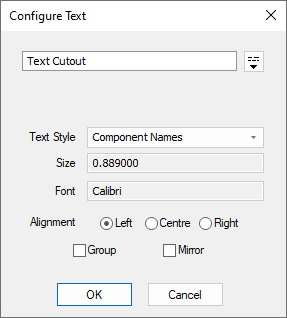 * If the **Group** feature is selected, any additional resulting shapes will be tightly grouped
with the master shape. Grouping it means you can move the extra shapes created for the holes in
characters, for example the centre of the letter 'O', along with the shape if you wish to reposition
it.
* If the **Mirror** feature is selected, the text will be mirrored.
* You can return this menu at any time during master shape selection by opening the context menu and
selecting **Change Text Configuration**.
* If the **Group** feature is selected, any additional resulting shapes will be tightly grouped
with the master shape. Grouping it means you can move the extra shapes created for the holes in
characters, for example the centre of the letter 'O', along with the shape if you wish to reposition
it.
* If the **Mirror** feature is selected, the text will be mirrored.
* You can return this menu at any time during master shape selection by opening the context menu and
selecting **Change Text Configuration**.
-
If a shape was not selected, you can click to select one now.
-
Text will not appear by your cursor ready for placement.
- Note that several placement options are available in the context menu.
-
Click to finalise placement and cut the master shape.
-
You will return to the dialog to repeat selection and cutting if necessary.
How to convert multiple shapes into cutouts
- Add multiple normal shapes that will be converted into cutouts, move them inside the master shape and leave them selected.
- Choose any of the Insert Cutout commands.
- Select the master shape to add the cutouts to.
- A warning message will be displayed asking if you want to convert the pre-selected shapes into cutouts.
- Press the Yes button. The pre-selected shapes will be cut out of the master shape and removed, and the Add Cutout mode will be exited.
How to add shapes as cutouts to another shape
- Add multiple normal shapes that will be converted into cutouts and move them inside the master shape. All shapes must be fully contained inside the master shape.
- Select the master shape and all of the shapes to apply as cutouts.
- Choose the Insert Cutout command. The cutout mode is not entered and the smaller shapes are not removed from the design, but the master shape now has additional cutouts on it.
Related Topics
Insert Polygon | Insert Rectangle | Insert Circle | Insert Triangle | Insert - Merge