

Use this dialog to search your libraries for suitable Parts to use in the Insert Component, Part Editor and Replace Part options.
Locating this option
Available from: Insert Component dialog > Find option
Available from: Library Manager dialog > Parts tab> Find option
How To Use The Dialog
Library Selection
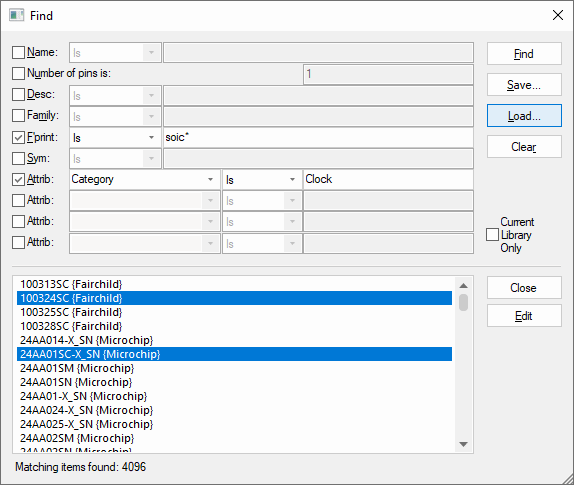
You can use this dialog to search all available libraries for suitable Parts based on various parameters, using the controls at the top of the dialog to set up the details of the kind of Part you are looking for.
Current Library Only
With this option selected, only the current library will be used for searching. With this left unchecked, all enabled Libraries will be searched.
Dialog Buttons
When you click Find, the matching parts (those that match all the stated criteria) will be shown in the list box.
Use the Save button to save the search criteria selected to a file.
Use the Load button to load previously saved search criteria.
Use the Clear button to reset the search criteria.
Use the Close button to close the Find dialog.
With one or more found items selected in the list, you can use the Edit button to edit the item.
Searching
Click on one of the entries in the list, and this item will be shown in the dialog from which the Find was invoked. For example if you are using Find from Insert Component, the Insert Component dialog updates to show the item selected in the list, including updating any previews you have currently enabled.
Note that as well selecting an attribute name from the drop-down list you can also type in a name.
For all the values apart from the number of pins, there is a drop-down list where you can choose how the values of the selected field should be matched:
- Is - matches exactly the value typed.
- Starts With - has the specified text at the beginning of the value.
- Contains - has the specified text somewhere in the value.
- Matches - you can choose to match a required value using wildcards.
- Not Matches - any text that does not match, using wildcards if required.
Once you have found the item you want to use and selected it in the list, either click the Close button to close Find and return to the original dialog, or double-click on the item in the list to close this dialog and ‘OK’ the original one in a single action.
What if the ‘originating’ dialog does not show the selected item?
The Find dialog can potentially list parts that the originating dialog does not know about. For example, if you are doing Change Part and the pin count on the Change Part dialog is set to 20, the Find dialog starts off by searching only for 20-pin parts, but you can override this setting and search for others. In that case selecting items in the list of ‘found’ items will not be able to update the previews etc in the Change Part dialog.