

Use this page to customise certain look and feel aspects of Pulsonix to suit your own personal preference.
Shortcuts
Default Keys: None
Default Menu: Tools
Command: Customise
Locating this option
Available from: Tools menu > Customise option
How To Change the Application Look…
The Application Look enables you to change the look of the Theme, the interface (Light or Dark mode), the use of Legacy Icons, icon reveal on menus and Icon Scale.
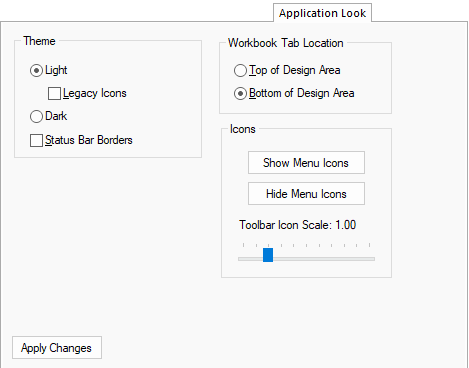
Theme
Light
By default, the Dark theme is used on a new installation of Pulsonix. If you wish to swap to a light mode, select this option.
With light mode selected, the Legacy Icons option will be available. Selecting this will swap the light icon set within Pulsonix to the older style ‘coloured’ icons. This can only be swapped in ‘Light’ mode and not in Dark mode.
Dark
The Dark button swaps the interface to a dark mode style. It also swaps out the current icon set (Light or Legacy) to use an alternative complementary dark set. By default, Dark mode and the dark icon set are used on a new installation.
Status Bar Borders
Checking this will enable borders around the text displayed in the Status Bar. By not having borders to the text, it gives the Status Bar a much flatter look but can be more confusing as there is less differentiation. By default, this option is selected on.
Apply Changes
Select the preferred look required then click the Apply Changes button. The appearance of the application will change to the chosen look but you will remain within this dialog. Using the Close button after changing
Workbook Tab Location
The Workbook Tab Location options allow you to choose whether to position the tabs at the Top or Bottom of the design area. This is shown when using Workbook Mode.
Icons
Show Menu Icons
This button will switch all menu icons on if they have been switched off.
Hide Menu Icons
Use this button to switch off all menu icons. You may wish to do this to declutter the menu interface. By default, all menu icons are switched on.
Toolbar Icon Scale
The scale of all toolbar icons can be changed using the slider. By default this will be set to 1.00. This may be useful if using high resolution monitors, 4K for example.
Customise Dialog Tabs
Commands tab
Toolbars tab
Tools tab
Menu tab
Keyboard tab
Application Look tab
Options tab