

Use this dialog to export Pulsonix design data in DXF format. DXF (Data Exchange Format), is a two-dimensional file format recognised by most desktop based mechanical drawing (MCAD) packages.
Shortcuts
Default Keys: None
Default Menu: Output
Command: Output DXF
Locating this option
Available from: Output menu > DXF option
How To Use DXF Export
On selection, the following dialog is displayed:
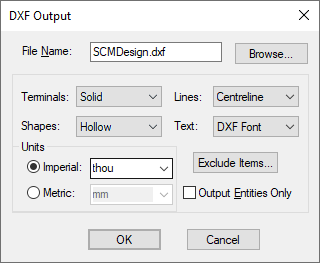
File Name
Type the file name required. By default, the option will use the design name and the file extension .dxf. Use the Browse button to define the folder required for the output.
DXF Objects
The Schematic DXF output defines objects within the design at one of four categories, Terminals, Shapes, Lines, and Text. Each of these categories can be output using a different style.
These are, for Lines:
Solid - a solid filled line as true thickness of the shape it represents
Altsld - as Solid but uses an alternative style for the shape
Segsld - outputs each segment of the shape and fills the segment
Seghol - outputs each segment of the shape but uses an unfilled shape to represent
each segment
Centreline - a single centre line of the line it represents
For Terminals and Shapes, these are Solid (as defined above) and:
Hollow - similar to centre line except the outside edge of the circle is represented by an outline.
For Text, these are:
DXF Font - normal text output but uses the font defined by the recipient system
Stroke Text - text broken down into individual entities and represented as strokes or lines.
Units
You can change the Units that you want your DXF sizes and coordinates to be output in, by selecting Imperial or Metric and by selecting the unit name from the appropriate dropdown box. By default the units used are your design units.
Exclude
To Exclude individual design items from the output file. You should click the Exclude Items button to enter the Exclude Items dialog to specify what you want excluded.
Output Entities Only
The check box does not output a layer table at the start of the file. Use this if combining plots, i.e. the first plot has this option unchecked and other plots have it checked, or if adding a plot from the Schematic to an existing mechanical drawing.