

Use this dialog to create and modify naming styles used within the Pin styles dialog.
Shortcuts
Menu: Setup
Default Keys: T
Command: Technology
Locating this option
Available from: Setup menu > Technology option > Naming - Pin Style Naming tab
Using the dialog
On selection, the Technology dialog opens, select Pin Style Naming. The existing naming style for the Technology being used will be presented.

The appropriate rule is found for each Style Naming rule by working down the list until the first match is found. Hence, the order of the rules is important.
Navigation
Press the New button to add a new entry to the list. To edit an existing entry, select it, the row will be underlined with a red line. The information can then be edited directly in the cell row or in the editing pane below it.
Remove an item from the list by selecting it and pressing the Delete button.
The Up and Down buttons are used to position and move the selected rule in the grid. The rules are applied from the top of the list down so moving them further up makes them more significant.
Use the Settings button to define the Units and Units text for use within the Pin Style Naming.
Replace
The Basic Set button is used to replace all the current contents of your rules with a basic set of rules. These can also be edited once inserted to your own requirements.
Using the editing pane
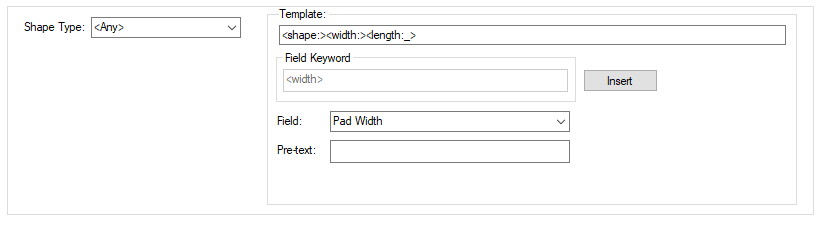
Shape Type
Select the Shape Type from the drop down list to select a shape that the rule will be applied to. As well as the regular shapes available in the Pin Styles dialog, you can also choose <Any> as the shape type, this can be used as your catch all rule.
Template
The Template: entry shows the template that will be used when the rule matches. You can type the template directly, or you can use the Field controls to add system defined fields. More information on how rules work is on the Style Naming Rules page.
Pin Style Fields
Pin Width - <width> - the width of the pin shape
Pin Length - <length> - the length of the pin shape
Pin Modifier Dimension - <dim3> - the corner radius
Pin Offset(x) - <offsetx> - X offset from the pin origin
Pin Offset(y) - <offsety> - Y offset from the pin origin
Is Metric!? - <metric> - with no pre-text, this sets the current units to Metric for the remainder of
the template; with pre-text, this acts as a test, and will substitute the pre-text if the current units are Metric.
Is Not Metric!? - <notmetric> - with no pre-text, this sets the current units to Imperial for the
remainder of the template; with pre-text, this acts as a test, and will substitute the pre-text if the current units
are Imperial.
Unit Text - <unit> - will substitute the name of the current units (e.g. mm).
Pin Shape - <shape> - the name of the pin shape as defined in the
Pin Style Settings.
Insert
Using the Insert button will enter the text shown in the Field Keyword. This has been defined using the Field: and Pre-text: fields below. More information on how these work is on the Style Naming Rules page.
Example Pin Style Rules
These two lines show how a Pin Naming Style will be defined when using the Basic Set button and how it might appear when used:
<shape:><width:><length_>
Rec0.800_0.900
Export and Import CSV
Use the Export CSV button to export the data in your Schematic design into a CSV format file. Using the Export CSV option will provide you with a formatted template ready for you to edit in your own data.
Use the Import CSV button to import data back into the Schematic design using a CSV format file.
The data in the file represents a spreadsheet of dialog contents with the data headings along the top row.
Related Topics - Technology Style Naming
Connection Style Naming | Hatch Style Naming | Line Style Naming | Text Style Naming | Style Settings | Pin Style Settings
Related Topics
Hatch Styles | Line Styles | Pin Styles | Text Styles | Track Styles | Export CSV | Import CSV