

Use this when editing a Part to define the Part as a DC Source.
Use this on a DC Source component in a schematic design to specify the DC value for the source, used for bias point calculation.
These parts have their Spice Type Built-in Function set to Source - DC Voltage or Source - DC Current.
Shortcuts
Default Keys: F7
Default Menu: Simulation
Command: Edit Spice Value/Model
How To Add A DC Source Component
Once you have a circuit that you wish to simulate, add a DC source device to provide a stimulus for the circuit. There are various ways to add a DC Source device to a Schematic Design:
- From the Simulation menu, Sources, select the Power Supply or DC Current Source Part, or
- From the Parts Browser, click on the Sources category to display a list of sources.
- Use Insert Component and with PulsonixSim selected as the Library to look in, select the source required.
Whichever method is used, you should be presented with a Voltage or Current DC Source component to place in the design.
How To Define A DC Source
In a Schematic Design, select the DC Source device(s) that you wish to change. Press F7 or use the Edit Spice Value/Model option from the Simulation menu, or from the shortcut menu.
From a Parts Library edit the required Part. Press the Edit Spice button on the Details tab. Make sure the Built-in Function is set to Source - DC Voltage or Source - DC Current and press the Edit Value button.
In both cases the following dialog will be displayed:
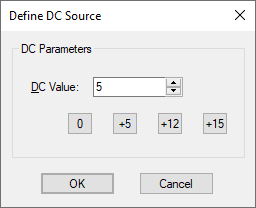
Specify the DC value for bias point calculation.
Press on one of the 0, +5, +12, or +15 buttons to quickly use that commonly used value.
Editing Multiple Components
If any of the fields are set to <Different> then some of the components you are changing have different values for that field. Clear this field and enter the required value for all components, or leave as <Different> to tell components to keep their original values for that field.
Related Topics
AC Source | Edit Device Type | PWL Source | Universal Source | Generating Waveforms