

Use this when editing a Part to define the Part as a Shift Register.
Use this on a Shift Register component in a schematic design to change its parameters, or to replace it with a Shift Register part using a different number of bits or output enabled state.
These parts are implemented by using Functional Modelling. They have their Spice Type Built-in Function set to Shift Register.
Shortcuts
Default Keys: F7
Default Menu: Simulation
Command: Edit Spice Value/Model
How To Add A Shift Register
There are various ways to add a Shift Register to a Schematic Design:-
- From the Parts toolbar, click on the Digital Generic pop-up to display the Digital Generic toolbar. Click on the Shift Register button.
- From the Parts Browser, click on Spice Category, then on Digital and Generic to display the Digital Generic parts. Drag the Shift Register part name into the design. Note: This method may not work if you have changed the part categories.
- Use Component from the Insert menu to add the Part called Shift Register from the Spice library.
Whichever method is used, you should be presented with the Define Shift Register Dialog described below. This works because the part named “Shift Register” has a blank function definition which forces the dialog to be given to get the required definition from you.
How To Define A Shift Register
In a Schematic Design, select the Shift Register device(s) that you wish to change. Press F7 or use the Edit Spice Value/Model option from the Simulation menu, or from the shortcut menu.
From a Parts Library edit the required Part. Press the Edit Spice button on the Details tab. Make sure the Built-in Function is set to Shift Register and press the Edit Definition button.
In both cases the following dialog will be displayed:
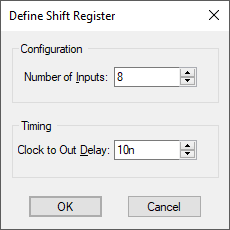
Number Of Bits
Enter the width of the register. Valid values are from 1 to 32.
Clock to Out Delay
Enter the register clock to output delay in seconds. This is the delay between the clock rising edge and the register value changing.
See the Arbitrary logic block section in the Simulator’s Device Reference Manual for more details.
Changing the Symbol
If editing a Part, make sure the chosen Number Of Bits match the Symbol that is used by the Part.
If editing a component in a schematic design, pressing OK with changed Number Of Bits will force the component to be replaced with a Part from the Library that matches the new specification. If no suitable Part exists, an error message will be given giving details of the Part that will need to be created.
Editing Multiple Components
If any of the fields are set to <Different> then some of the components you are changing have different values for that field. Clear this field and enter the required value for all components, or leave as <Different> to tell components to keep their original values for that field.