

This section explains how to run a Monte Carlo simulation.
Shortcuts
Default Keys: None
Default Menu: Simulation
Command: Run Monte Carlo
What Is Monte Carlo Simulation?
Monte Carlo analysis is a procedure to assess manufacturing yields by repeating simulation runs with varying applied random variations to component parameters. The technique is very powerful and usually gives a more realistic result than “worst case” analysis which varies component values to their extremes in a manner which produces the worst possible result.
The implementation of Monte Carlo analysis in Pulsonix has been designed to be quick to set up for simple cases while still providing the required flexibility for more advanced requirements as might be required for integrated circuit design.
In this help page we cover the aspects of setting up a Monte Carlo analysis from the front end. This includes setting device tolerances in the schematic, setting up and running a Monte Carlo simulation and analysing the results.
For more information on applying tolerances to devices in the schematic see Monte Carlo Tolerances.
Plots of Monte Carlo analyses are performed in exactly the same manner as for normal runs. When you probe a circuit point curves for each run in the Monte Carlo analysis will be created. You will notice, however, that only one label for each set of curves will be displayed.
All the Monte Carlo functionality within Pulsonix is on the Monte Carlo sub-menu on the Simulation menu:
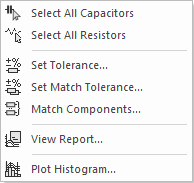
How To Run A Monte Carlo Simulation
There are actually two types of Monte Carlo analyses. These are:
- Single step Monte Carlo sweep.
- Multi step Monte Carlo run.
The first one is applicable to AC, DC, Noise and Transfer Function analyses and creates a single curve. The second can be applied to the same analyses in addition to transient analysis and creates multiple curves.
Setting up a Single Step Monte Carlo Sweep
- From the schematic simulation menu, select the Simulation Parameters option.
- From the Select Simulation Analysis dialog, select the AC, DC, Noise or TF tab as required.
- In the Sweep Parameters section, press the Define Mode button.
- From the Define Sweep Mode dialog, select Monte Carlo from the Sweep Mode section.
- In the Sweep Parameters section enter the required value for the Number Of Points.
- For AC, Noise and TF, you must also supply a value for the Frequency.
Setting up a Multi Step Monte Carlo Run
- From the schematic simulation menu, select the Simulation Parameters option.
- From the Select Simulation Analysis dialog, select the Transient, AC, DC, Noise or TF tab as required.
- Define the analysis as required.
- In the Monte Carlo and Multi-step Analysis section, check the Enable Multi-Step box then press the Define Multi-Step button.
- From the Define Multi Step Analysis dialog select Monte Carlo from the Sweep Mode section.
- In the Step Range section enter the required value for the Number Of Steps.
Monte Carlo analysis is now run in exactly the same way as other analysis. Exit the Simulation Parameters dialog and Press F9 or use the Simulate Design option from the simulation menu.
Setting the Seed Value
The random variations are created using a pseudo random number sequence. The sequence can be seeded such that it always produces the same sequence of numbers for a given seed. In Monte Carlo analysis, the random number generator is seeded with a new value at the start of each run and this seed value is displayed in the log file. It is also possible to fix the first seed that is used using the SEED option. This makes it possible to repeat a run. To do this, note the seed value of the run of interest from the log file then set the seed as follows:
- From the schematic simulation menu, select the Simulation Parameters option.
- Select the Options tab.
- In the Monte Carlo section, check the Set Seed box and enter the required seed value.
The first run of each Monte Carlo analysis will use the same random values as the run from which you obtained the seed value in the log file. Note this assumes that only changes in values are made to the circuit. Any topology change will upset the sequence.
This technique is a convenient way of investigating a particular run that perhaps produced unexpected results. Obtain the seed used for that run, then repeat with the seed value but doing just a single run. You will then be able to probe around the circuit and plot the results for just that run.
Monte Carlo Report
When a Monte Carlo simulation is performed a log file is produced containing the randomly selected component values and model parameters used for each run. Use View Report from the Monte Carlo menu to view the most recent Monte Carlo log file.
Analysing Monte Carlo Results
Plots of Monte Carlo analyses are performed in exactly the same manner as for normal runs. When you probe a circuit point curves for each run in the Monte Carlo analysis will be created. You will notice, however, that only one label for each set of curves will be displayed. Operations on curves such as deleting and moving will be performed on the complete set.
Related Topics
Define Component Value | Define Spice Type | Matching Components | Monte Carlo Tolerances | Random Probe | Set Device Tolerance | Simulation Parameters | Set Match Tolerance