

Following a successful Simulation run, you can use the interactive Random Probe tool to plot the voltage or current on selected nets and device pins in the design.
The alternative approach is to use Insert Fixed Probe from the Simulation menu to add fixed voltage or current probes to the Schematic design before simulation. The PulsonixSim Simulator will then generate graphs of the probed voltages and currents automatically when simulation is run.
Shortcuts
Default Keys: None
Default Menu: Simulation
Command: Random Probe
How To Use A Random Probe
After running simulation, select the Random Probe option from the Simulation menu.
A probe cursor will appear indicating that you are using the interactive Random Probe tool. The current probe type is displayed on the right hand side of the Status Bar. It will be the same type as was last used in this option.
A prompt stating what type of item you can pick is displayed on the left hand side of the Status Bar. As you move the cursor over the design, nets and pins that are suitable for probing with the current probe type are highlighted.
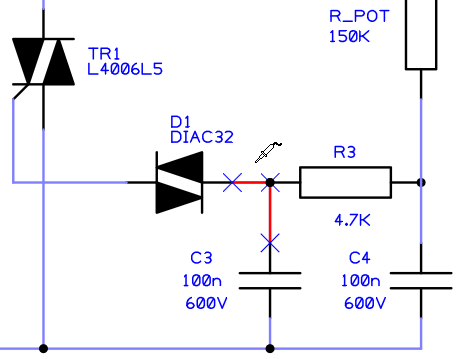
Click on the highlighted item that you wish to probe to tell the simulator to display the plot of the voltage or current on the selected item.
Right click to use the shortcut menu to change the type of probe you are using. The following menu will be displayed:
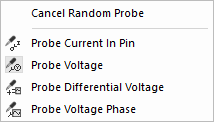
Each section on the menu contains a different type of probe.
Pick nets when using the Voltage or Phase probe, or device pins when using the Current probe.
The Differential Voltage probe asks for you to select two nets before plotting the simulation curve.